Data Analysis in Excel
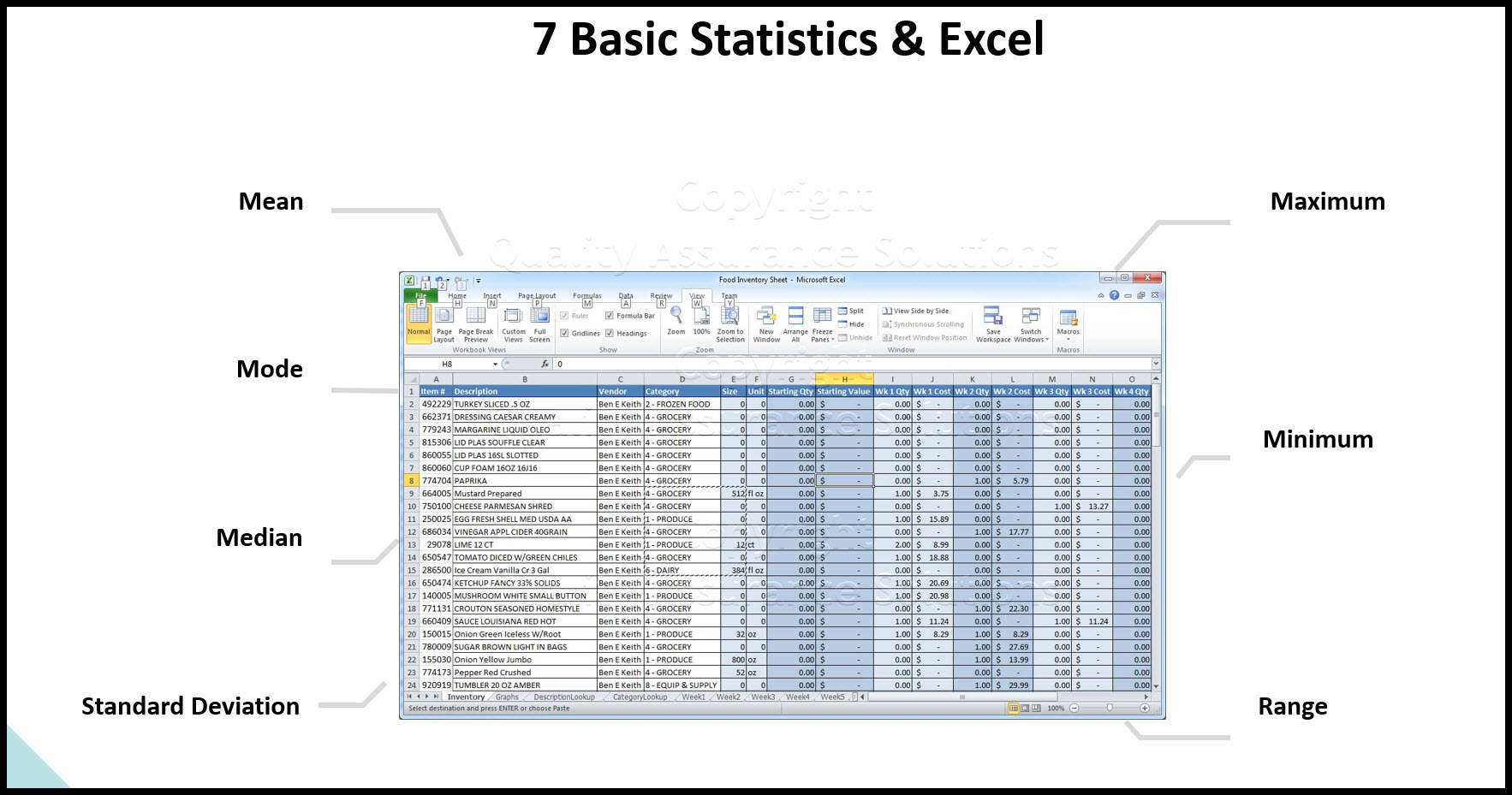
This article discusses basic data analysis in excel.
In order to improve your Quality Assurance you must be able to measure and then interpret that data. Data analysis in excel can help you interpret that data.

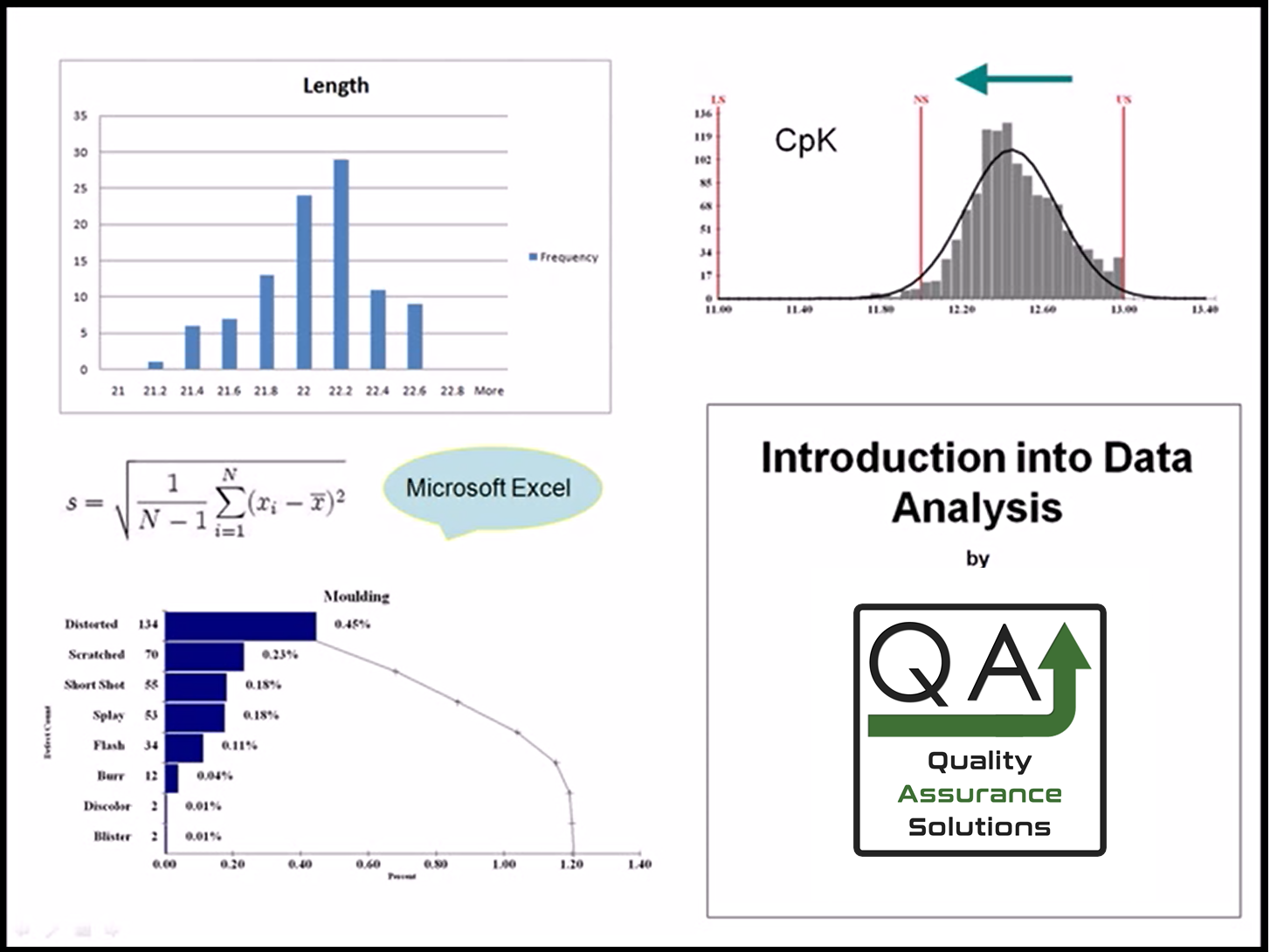
This Data Analysis Video teaches you the basic tools for understanding, summarizing, and making future predictions with your collected data. Includes MS Excel templates.
In the discussions below, we use Office 365 version. Earlier versions can also be used.
Calculating Mean or Average of the Data Set
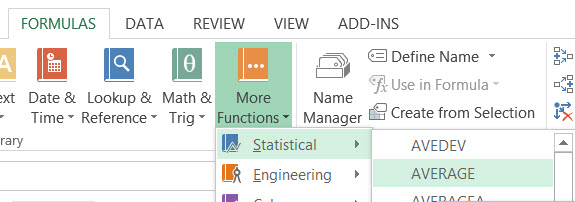
- Click the cell where you want the average to go.
- Type = in the desired cell
- Click the formulas tab
- Click More Functions
- Click Statistical
- Click Average
- Highlight all the numbers that need to be averaged
- Click Ok
Calculating Mode of the Data Set
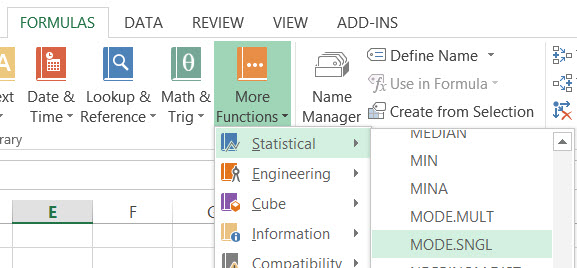
- Click the cell where you want the mode to go.
- Type = in the desired cell
- Click the formulas tab
- Click More Functions
- Click Statistical
- Click mode.sngl
- Highlight all the numbers that need to find the mode
- Click Ok
This Data Analysis Video teaches you the basic tools for understanding, summarizing, and making future predictions with your collected data. Includes MS Excel templates.
Calculating Median of the Data Set
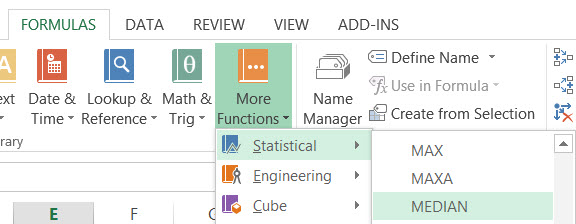
- Click the cell where you want the median to go.
- Type = in the desired cell
- Click the formulas tab
- Click More Functions
- Click Statistical
- Click mode
- Highlight all the numbers that need to find the median
- Click Ok
Calculating the Standard Deviation of the Data Set
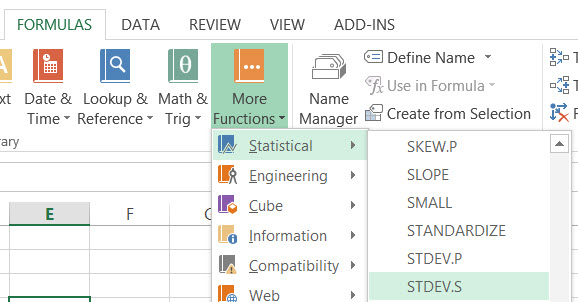
- Click the cell where you want the standard deviation to go.
- Type = in the desired cell
- Click the formulas tab
- Click More Functions
- Click Statistical
- Click STDev.S (sample population)
- Highlight all the numbers that are needed for standard deviation
- Click Ok
This Data Analysis Video teaches you the basic tools for understanding, summarizing, and making future predictions with your collected data. Includes MS Excel templates.
Calculating the Minimum of the Data Set
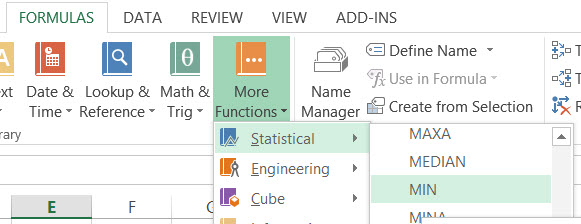
- Type = in the desired cell
- Click the formulas tab
- Click More Functions
- Click Statistical
- Click Min
- Highlight all the numbers that are needed to find the minimum
- Click Ok
Calculating the Maximum of the Data Set
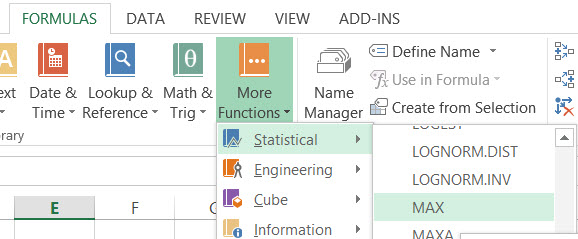
- Type = in the desired cell
- Click the formulas tab
- Click More Functions
- Click Statistical
- Click Max
- Highlight all the numbers that are needed to find the maximum
- Click Ok
Calculating the Range of the Data Set
- Type = in the desired cell
- Click the Max cell
- Type –
- Click the Min Cell
- Type the Enter Key
More Info
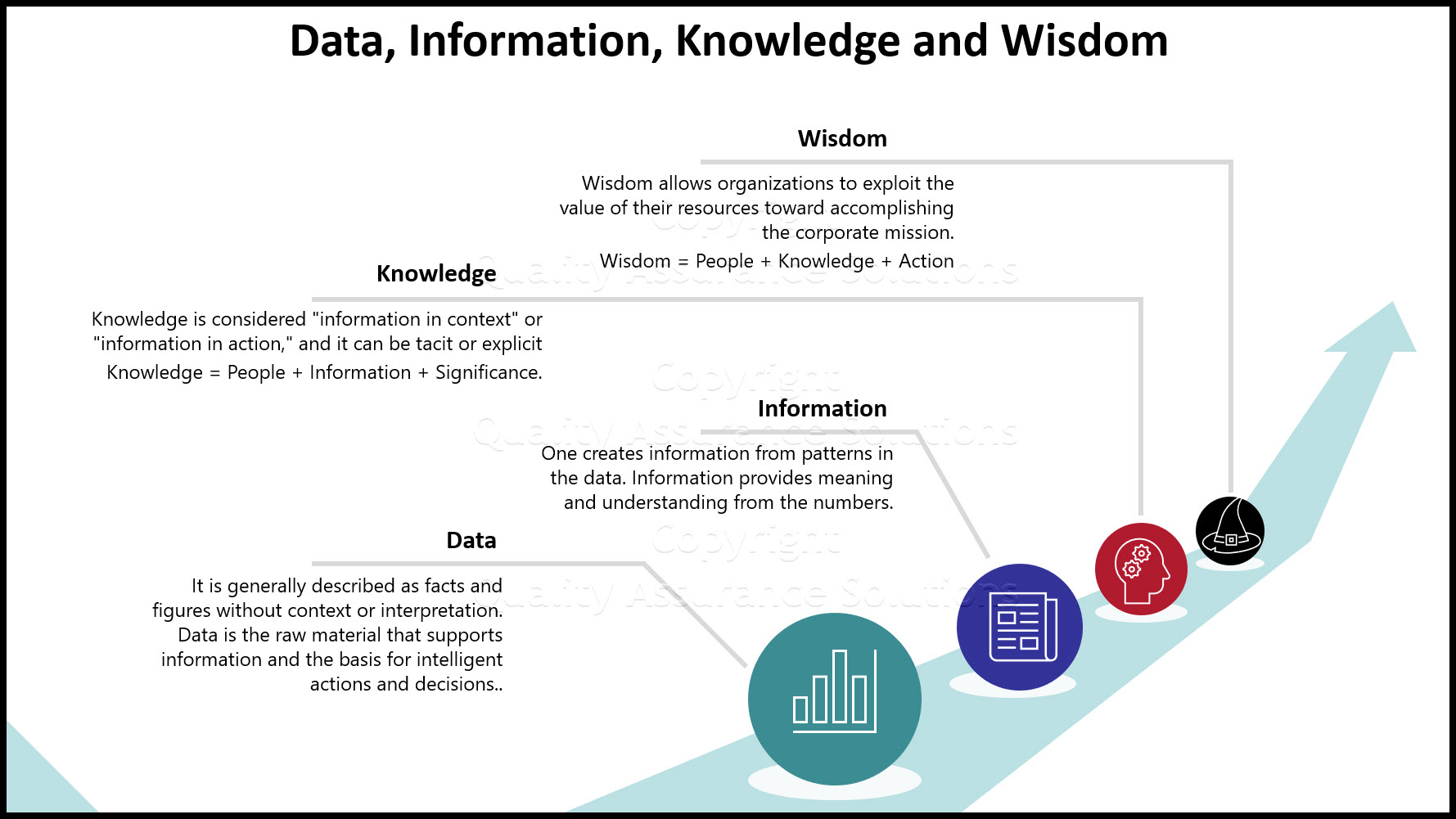
Data and Information
Data and Information, are often used interchangeably, they don’t mean the same thing
Process Improvement and KPOVs
Lean Sigma is different to many traditional Process Improvement initiatives in its reliance on data to make decisions
Histogram in Excel
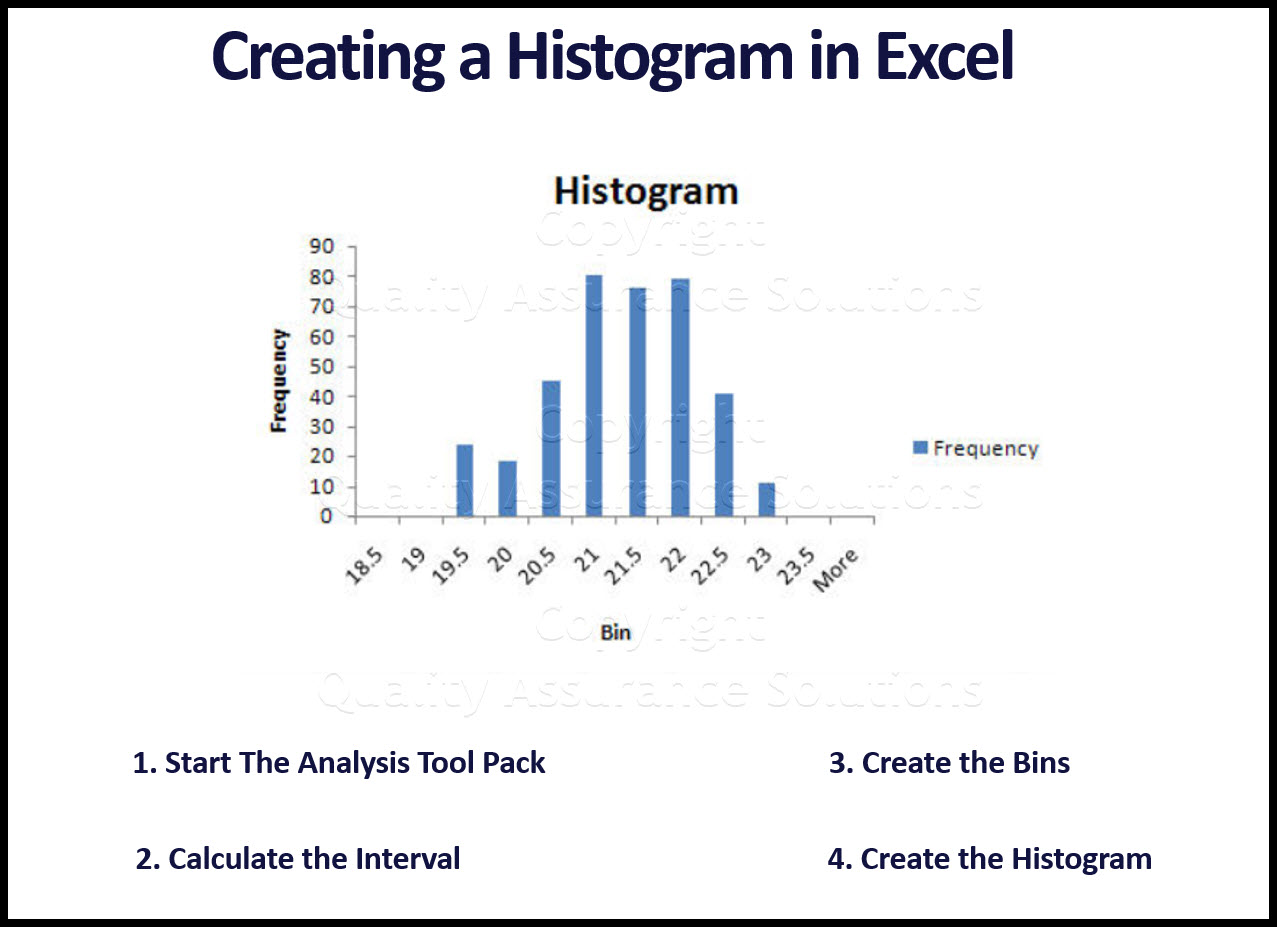
Follow these steps to create a Histogram in Excel. This includes turning on data analysis, creating bins, and sorting data.
Histogram Examples: A Picture of Your Data
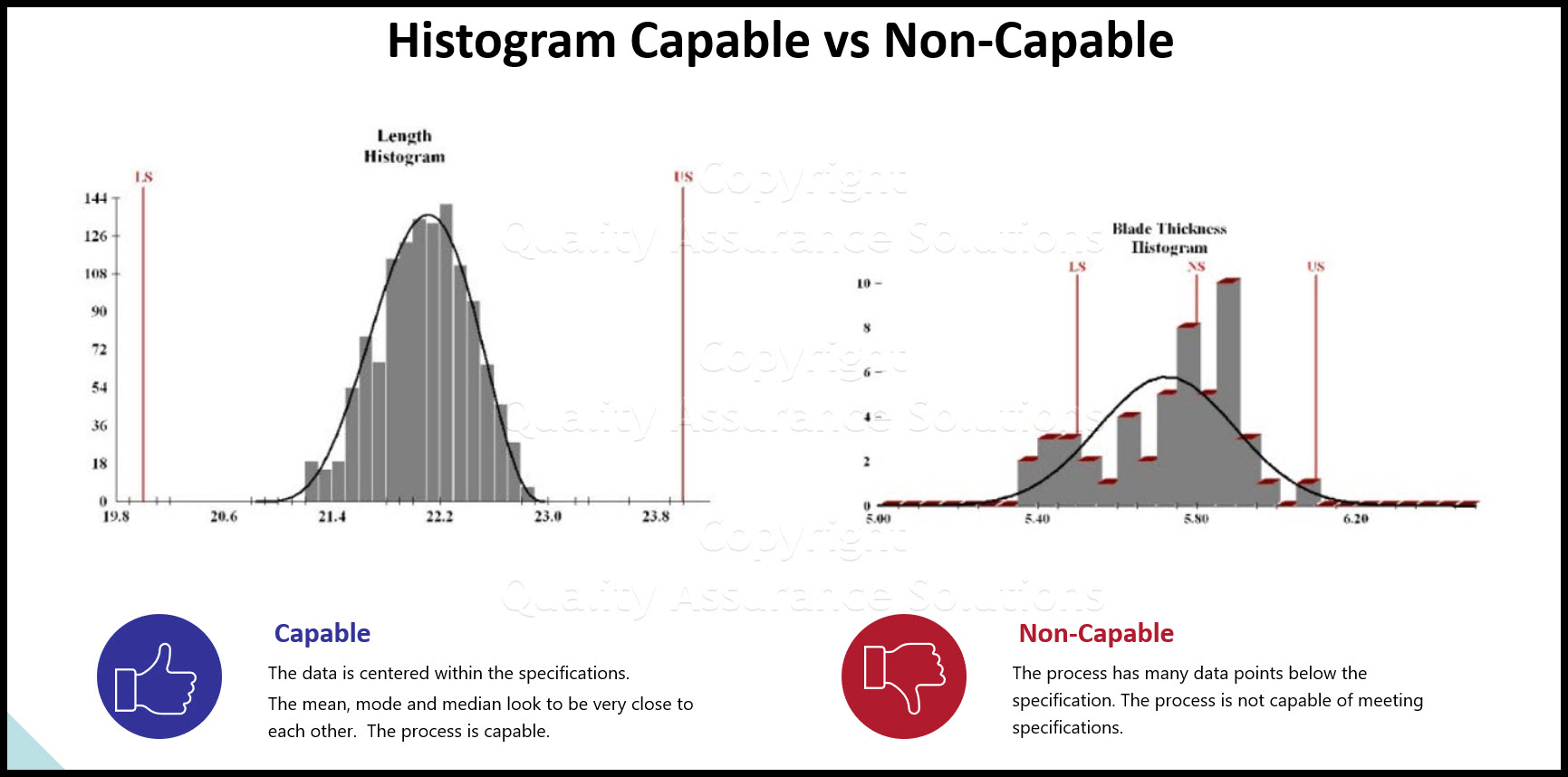
See our histogram examples. We discuss normal distribution and how it applies to quality assurance. Histograms are a key process improvement tool.
Learn Data Analysis Techniques
When you understand data analysis techniques, you take a big step towards making product and process improvements.
Data Analysis Video
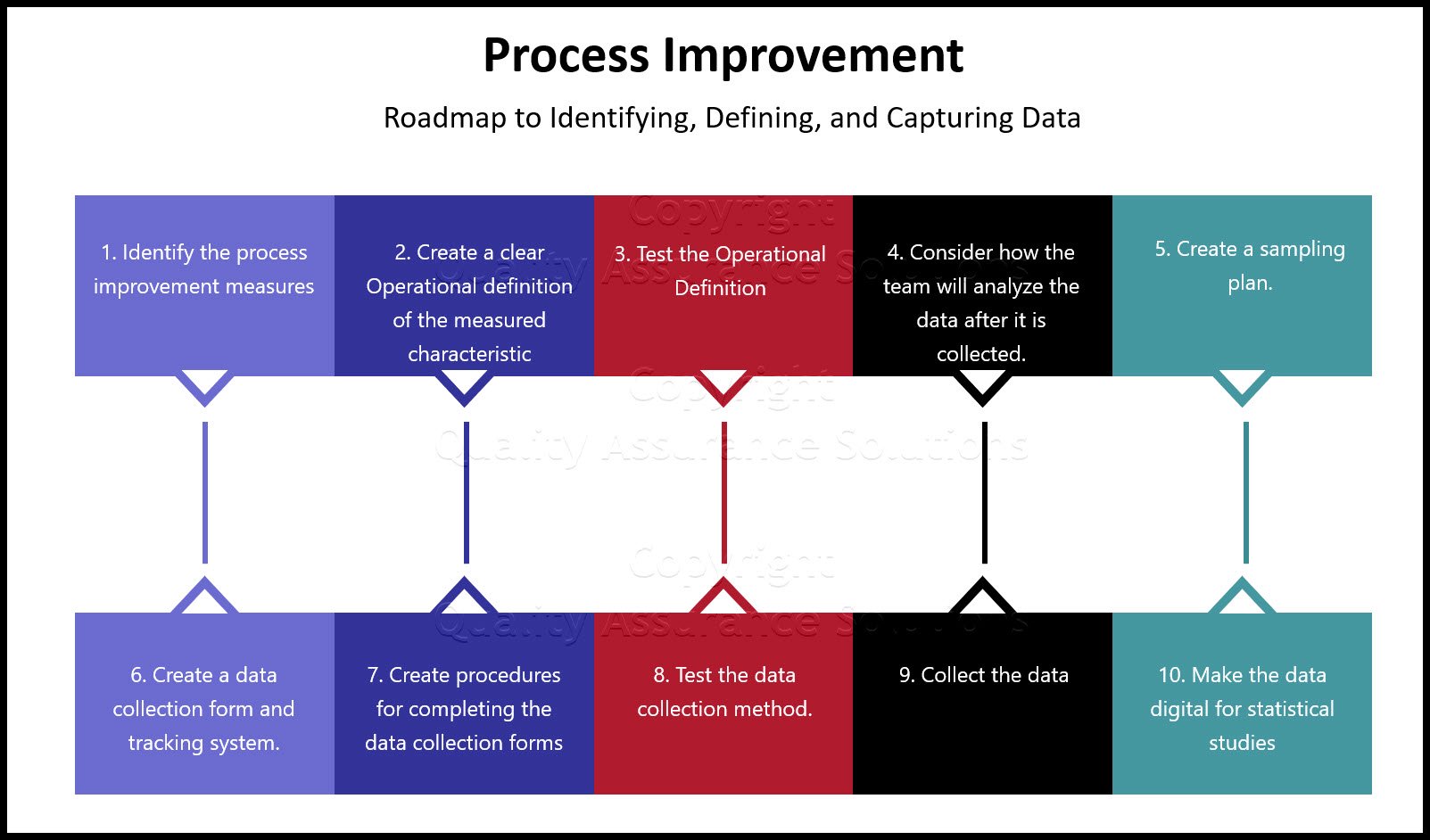
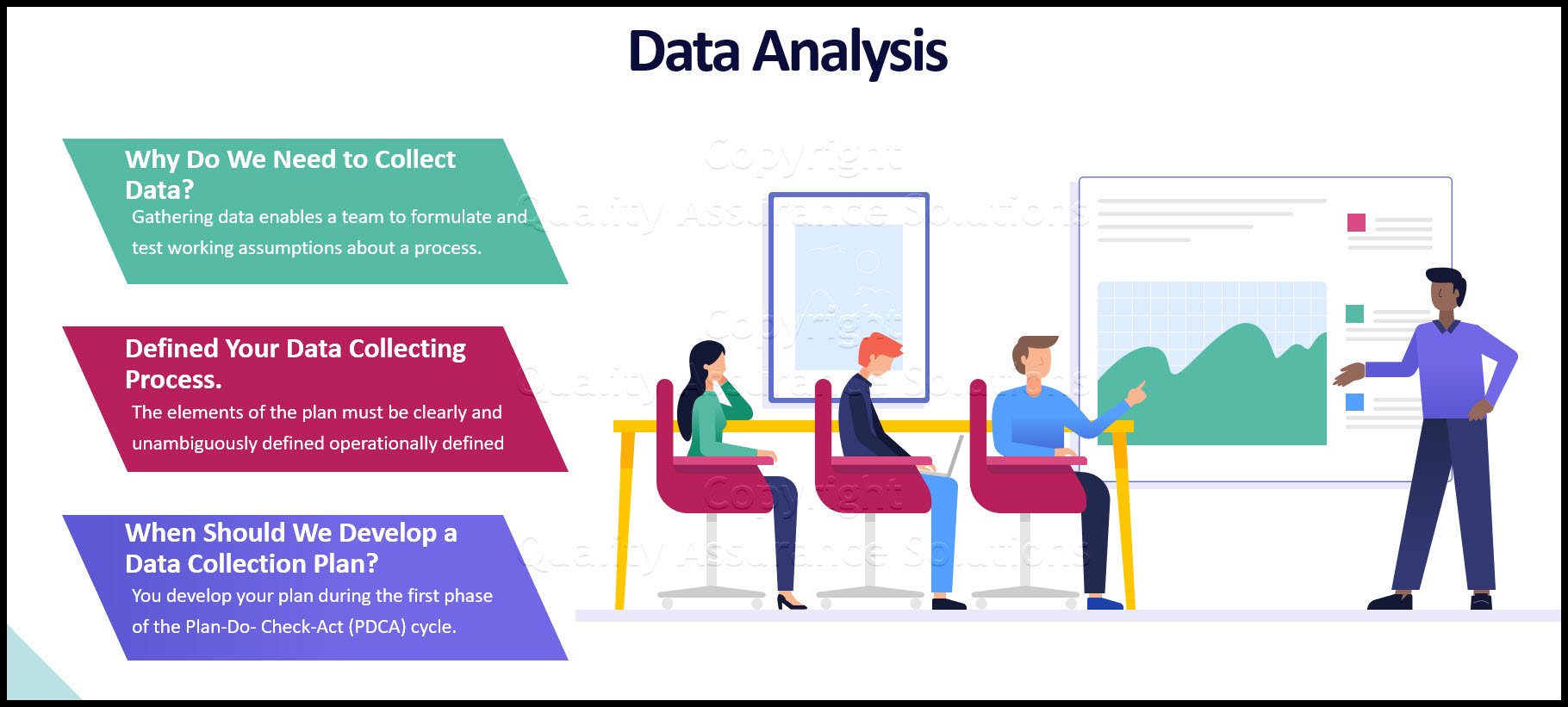
Download Today. Don’t take chances without understanding your data. Data drives business decisions. But how does this work? This introduction to Data Analysis Video shows you how to gather, summarize, and present data to management and your team. $69.00. Satisfaction guaranteed.
Run Chart
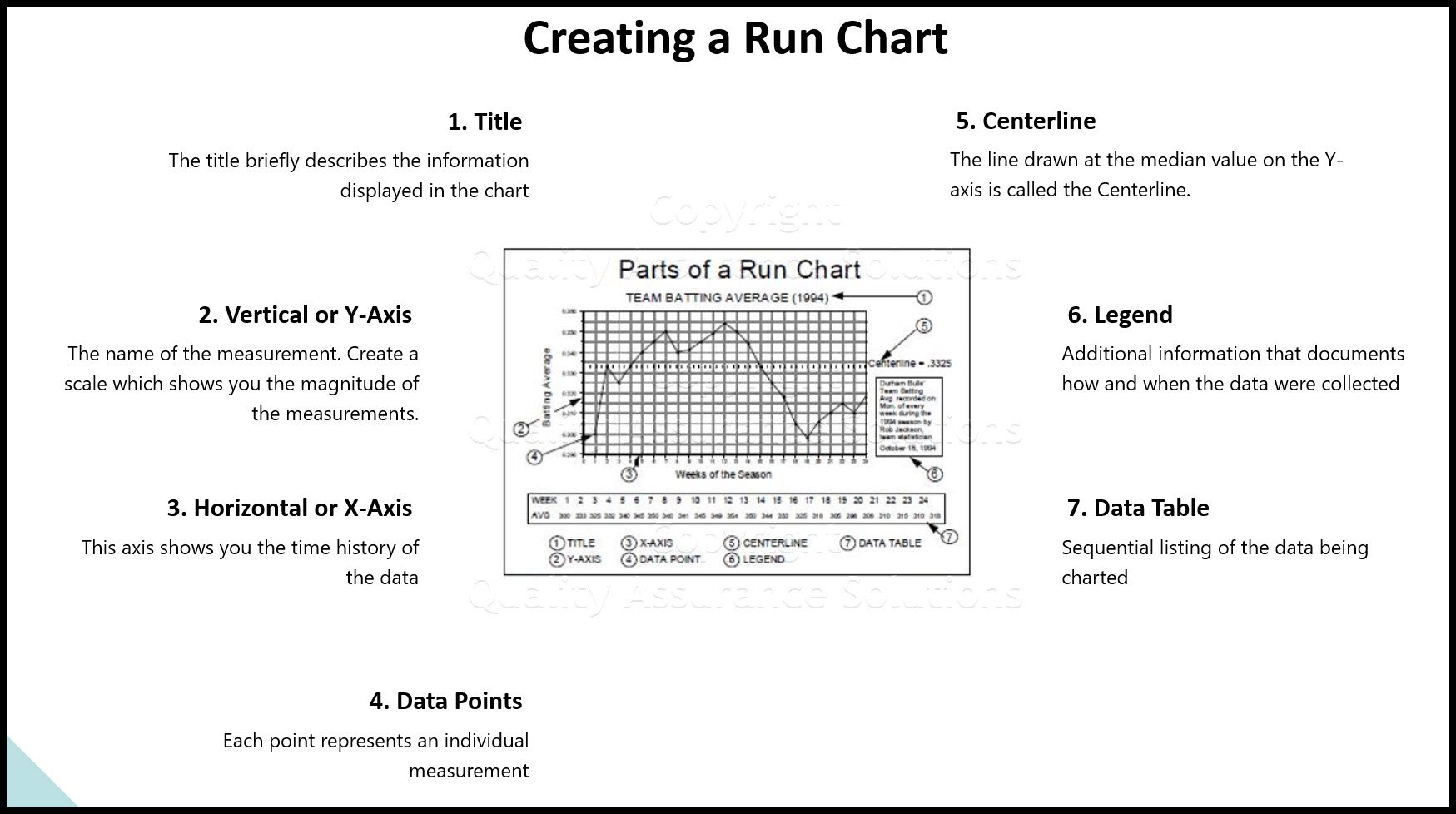
A Run Chart displays the process performance over time. It is a line graph of data points plotted in chronological order. Learn more!
Regression
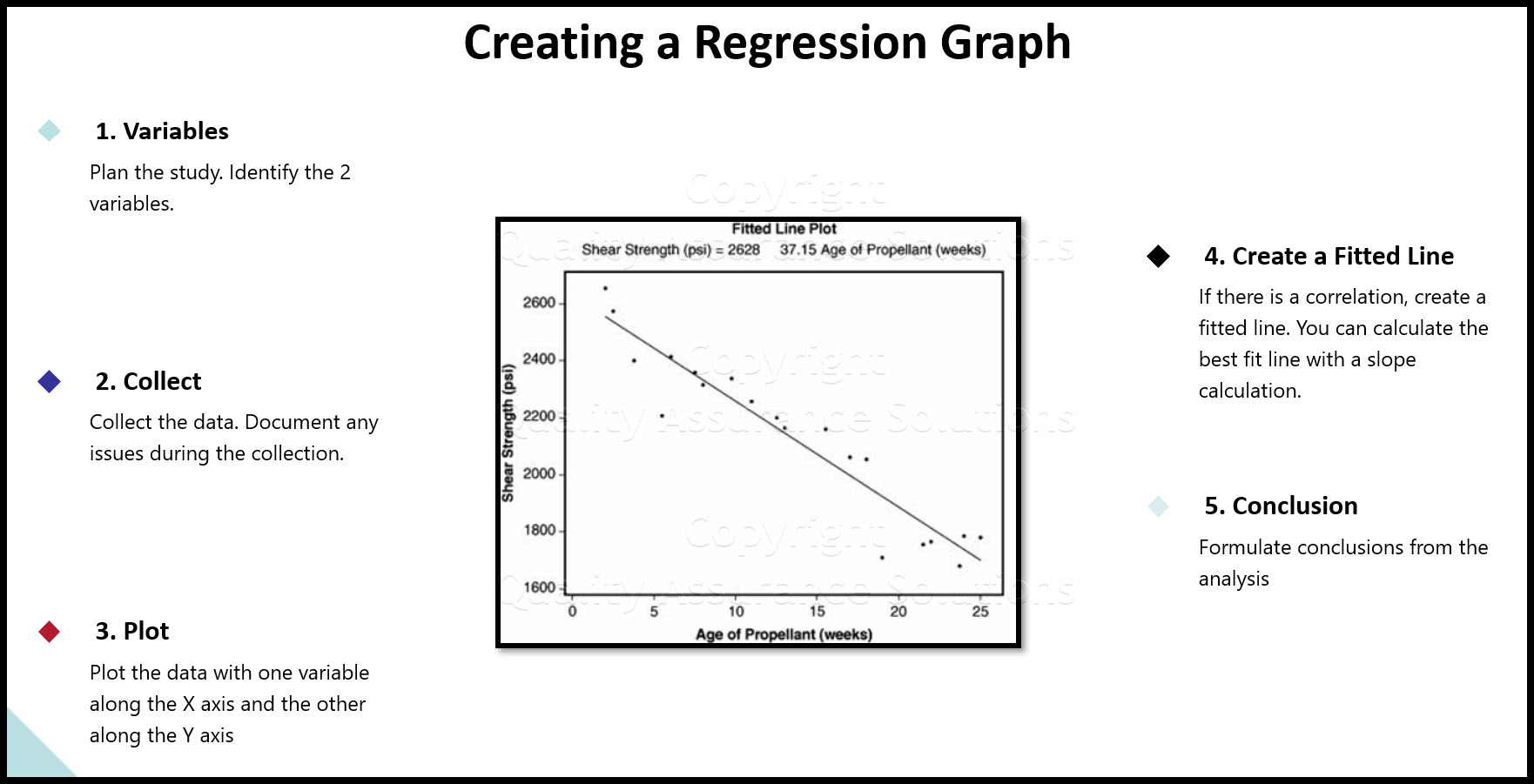
See our article on regression, includes details, collecting the data, examples, roadmap and possible problems
Continuous Data
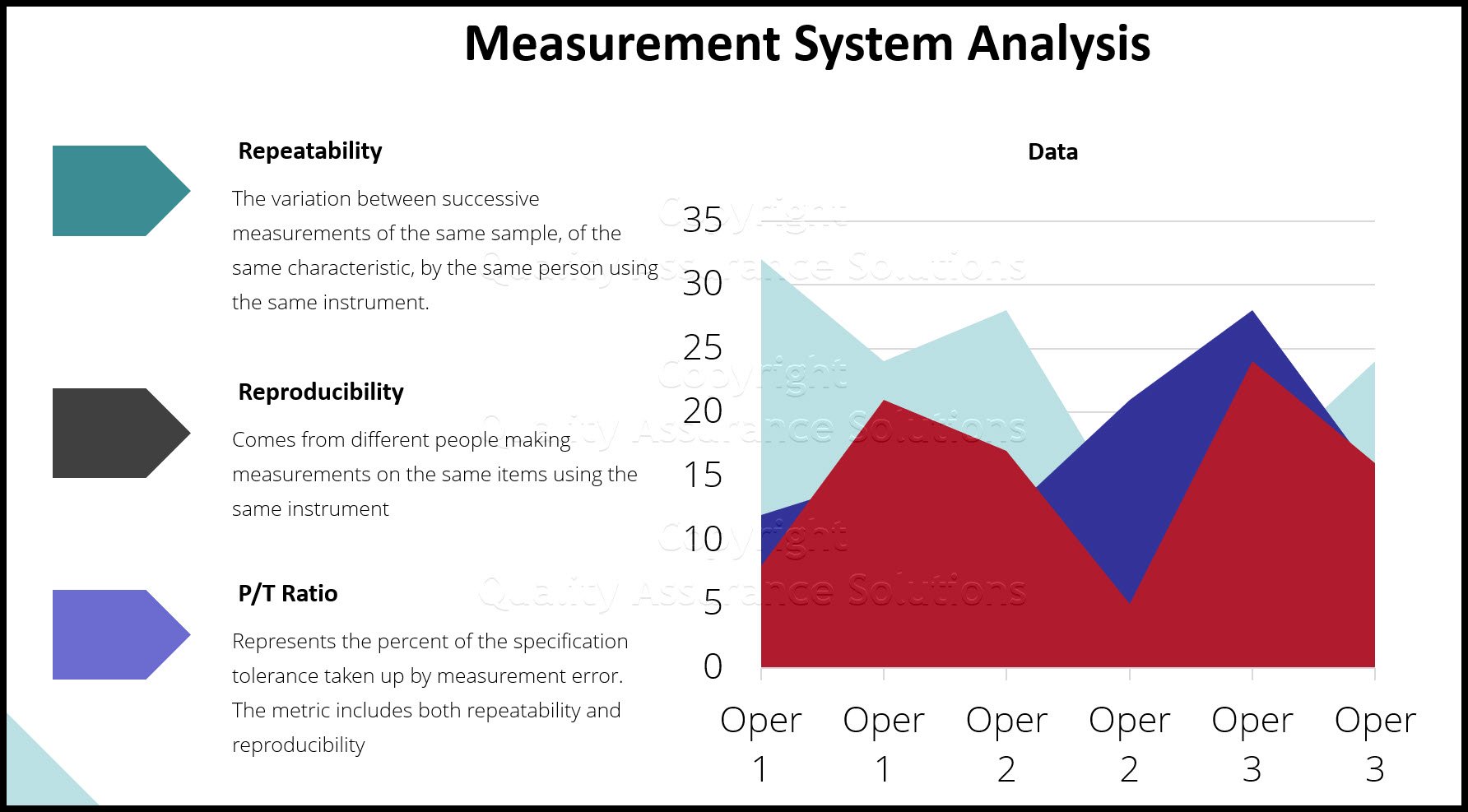
Learn how to evaluate your continuous data and assure satisfactory inspection. Without conducting an MSA on your data set, you put your inspection data at risk.
What is Data Analysis? A Tool for Continuous Improvement
What is data analysis? Understanding data is key to continuous improvement, your quality assurance systems and ISO 9001 certification.
Validity for Measurement Systems
Understand Measurement System Analysis, and we present a road map to apply MSA Validity
Statistics Normal Distribution Described
Do you know the statistics normal distribution? Normal distrubution is critical to know for your quality assurance program.
Understand Process Capability
Learn about Process Capability, Process Drift, PpK Vs CpK
MSA Attribute data
An overview of MSA Attribute data and how MSA data affects your processes
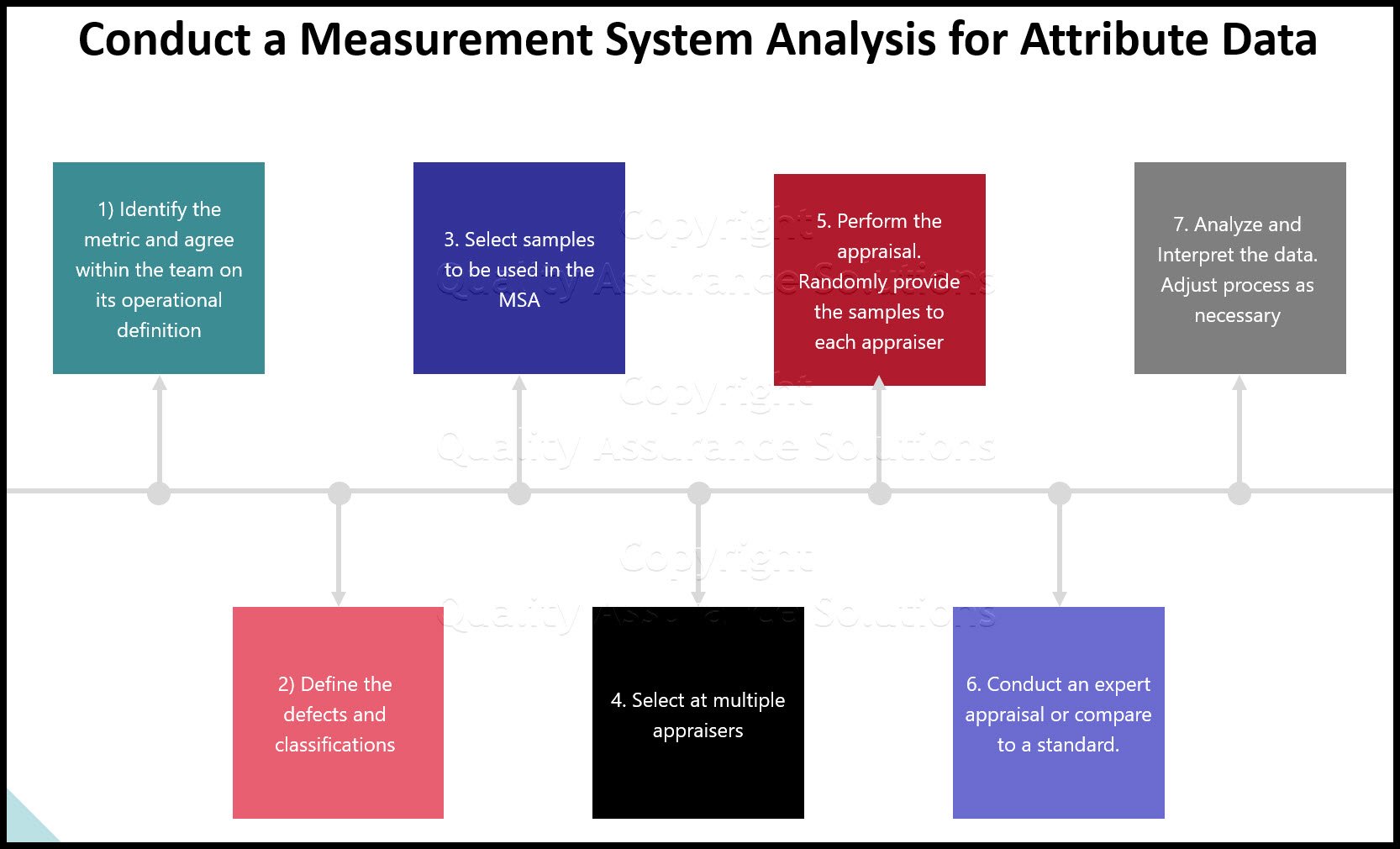
Process Capability Studies
Process capability studies demonstrate the fit of your data to your specifications. Machine process capability determines current and future defects.
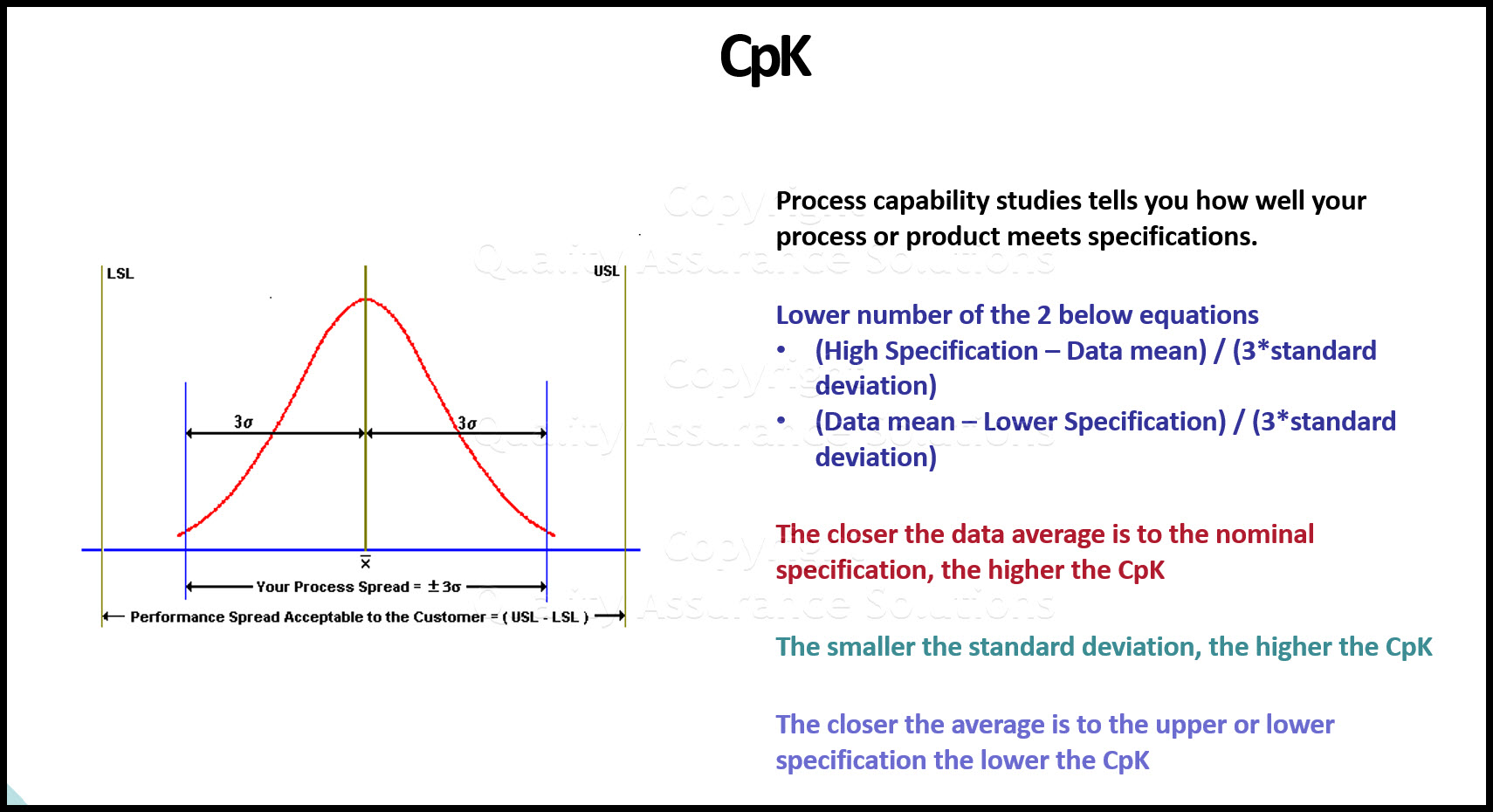
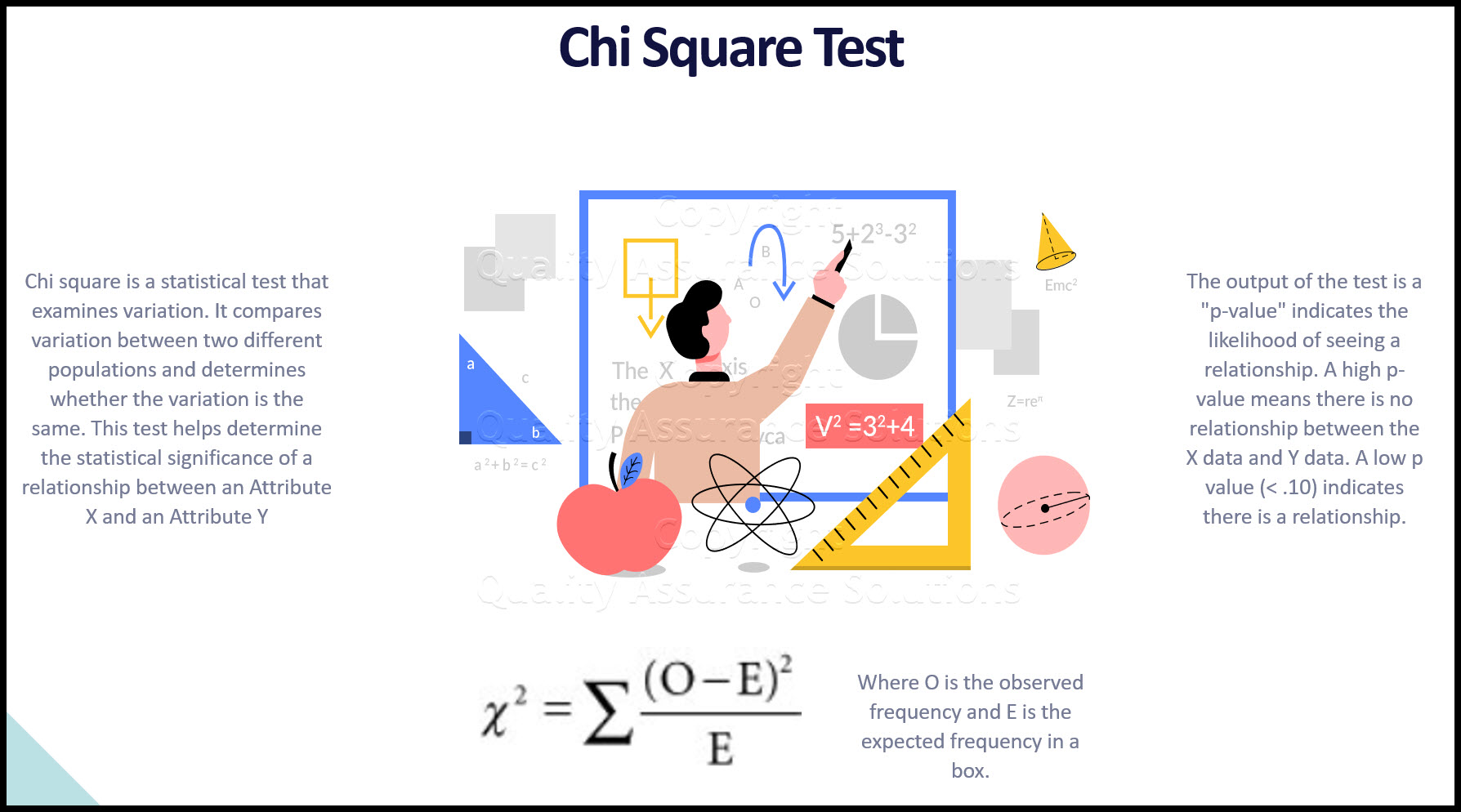
Chi Square
Learn how to apply Chi Square in practice, when to use it , how to insure results
|
Quality Assurance Solutions Robert Broughton (805) 419-3344 USA |
 |


 |
Software, Videos, Manuals, On-Line Certifications | |
 |
An Organizational Task Management System. Projects, Meetings, Audits & more | |
 |
Corrective Action Software | |
 |
Plan and Track Training | |
 |
AQL Inspection Software |
 |
450+ Editable Slides with support links | |
 |
Learn and Train TRIZ | |
 |
Editable Template | |
 |
Templates, Guides, QA Manual, Audit Checklists | |
 |
EMS Manual, Procedures, Forms, Examples, Audits, Videos | |
 |
On-Line Accredited Certifications Six Sigma, Risk Management, SCRUM | |
|
|
Software, Videos, Manuals, On-Line Certifications |